Quick Answer
Practical digital signage ideas for fitness studios, Part 1 of 5
A clear class schedule is one of the most useful things you can show on a screen inside a fitness studio.
Members usually want four quick answers when they arrive: what starts next, when it begins, where it takes place, and who is teaching it. A digital schedule makes those details easy to see without asking at reception or searching through a full weekly timetable.
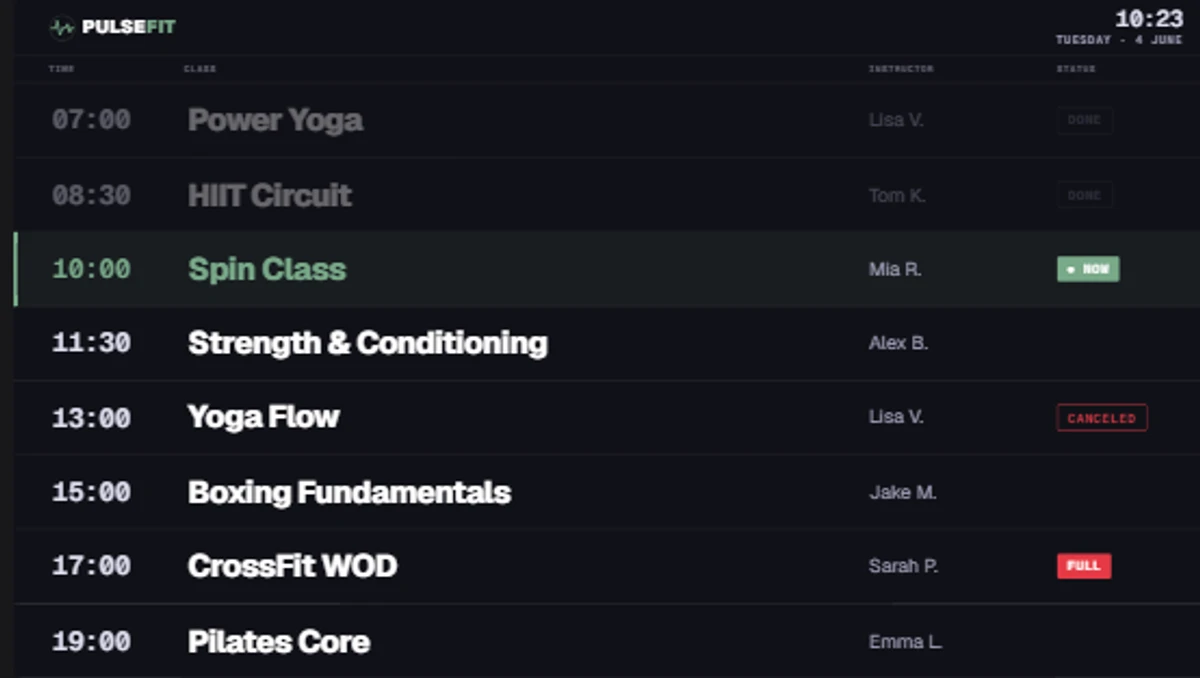
A branded class schedule can show today’s classes, start times, rooms and trainers. Content can be managed manually or populated from a connected source.
Show members what is happening next
A schedule on screen benefits the whole studio. Members can see at a glance which class is on and where to go. Staff spend less time answering the same questions. The programme looks consistent across every screen in the building.
Use the schedule you already manage
Most studios already maintain a class programme somewhere. Framebaker can work with that existing programme rather than asking you to start from scratch.
Booking or reservation system
Many studios already manage classes in a booking, membership or reservation platform. Where that platform provides an integration, calendar or supported data feed, Framebaker can use the existing programme as a content source.
Your booking platform remains the place where classes are managed. Framebaker controls how that information is designed, filtered and shown on each screen.
The data available may include:
- Class name
- Start and end time
- Room
- Trainer
- Availability
- Changes and cancellations
Compatibility depends on the source system and the connection it provides.
Google Calendar or Outlook
Shared Google Calendar or Outlook / Microsoft 365 calendars are a practical option when the studio already manages classes as calendar events. Framebaker can connect to a shared calendar and map the events into the schedule template.
Calendar events may provide:
- Class name
- Start and end time
- Room
- Trainer
- Notes
The information available on screen depends on what your calendar events contain.
Manage the schedule in Framebaker
A smaller or mostly fixed programme can be managed directly in Framebaker using a reusable template. Class names, times, rooms, trainer names and status messages can all be updated from the CMS.
This is a straightforward starting point for studios with a stable timetable, or for those who want to get a screen running before arranging a connected source.
From schedule to screen
Connect your schedule
Use your booking system, shared calendar or a manually managed schedule.
Choose what to show
Select the classes, location, room or time period relevant to each screen.
Publish to your screens
Apply your studio design and publish immediately or schedule the content.
Prefer a different style? Use this template as a starting point, or let us help create a custom version for your studio.
Show the right classes on each screen
A reception screen and a screen outside a cycling studio do not need to show the same information. In Framebaker, content and schedules can be assigned to the relevant screens so each location stays useful.
Reception
Today’s complete programme
Studio entrance
Current and next class
Lounge or café
Schedule combined with promotions
Framebaker’s playback scheduling also lets you decide when content appears. Morning and evening programmes can use different screen schedules, while announcements or promotions can run between timetable content.
Keep the design consistent
The class schedule template can use your studio’s colours, typography, and logo. The timetable data changes inside a consistent layout, helping members recognise the information quickly.
A schedule can include:
- Class name and start time
- Studio or room
- Trainer name
- Availability, when supplied by the source
- Last-minute changes or cancellations
- A clear indication of the current or next class
Different locations can use the same branded design while displaying their own relevant programme.
What equipment do you need?
A typical setup includes a TV or commercial display with HDMI, a compatible Framebaker player, an internet connection and access to the Framebaker CMS.
In many cases, you can use an existing screen. The player connects it to Framebaker and receives the latest content and schedule from the cloud.
Use the same screen for more than schedules
A reception screen might show the next classes for 30 seconds, followed by a membership promotion, trainer spotlight or event announcement.
Different content can appear at different times of day, so the screen remains useful even when no class is about to begin.
Explore Framebaker for fitness studios to see the templates, supported hardware, and screen-management workflow.
See Framebaker in your browser
No installation. No sales call. Start managing screens in minutes.
Frequently Asked Questions
How do I show my fitness class schedule on a screen?
Connect your booking system, shared calendar or a manually managed programme to Framebaker. Choose what each screen should show, apply your studio branding, and publish. The schedule updates without you having to recreate the design.
Can I connect my booking system to a digital signage screen?
Where your booking or reservation platform provides an integration, calendar or supported data feed, Framebaker can use that as a content source. Compatibility depends on the source system and the connection it provides.
Can I use Google Calendar for a fitness class schedule screen?
Yes. A shared Google Calendar or Outlook / Microsoft 365 calendar can be connected to Framebaker and used to populate the class schedule template with event details such as class name, time, room and trainer.
What hardware do I need to display a class schedule on a screen?
A typical setup requires a TV or commercial display with HDMI, a compatible Framebaker player and an internet connection. In many cases you can use an existing screen.
Can different screens in the same studio show different classes?
Yes. In Framebaker, content can be assigned to individual screens or groups. A reception screen can show the full day's programme while a studio entrance shows only the current and next class.
Related Articles
Framebaker for fitness
Put your studio schedule on screen
Explore the fitness solution, templates, hardware and pricing.